 Zhcloudlink
Home / Technology / Technical Guide: RTSP Streaming for Hikvision, Dahua and Uniview Cameras on a LAN
Technology
Technical Guide: RTSP Streaming for Hikvision, Dahua and Uniview Cameras on a LAN
This document covers RTSP streaming configuration for Hikvision, Dahua and Uniview cameras and NVRs on a local area network, for video integration, security platform connectivity and AI analytics.
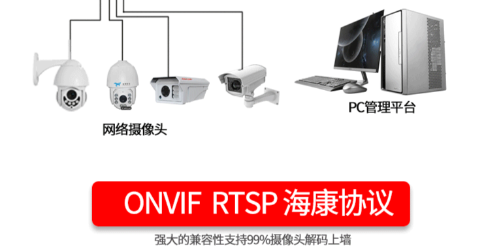
1. Scope
This document covers RTSP streaming configuration for Hikvision, Dahua and Uniview cameras and NVRs on a local area network, for video integration, security platform connectivity and AI analytics.
2. Streaming Approach
- Recommended: stream directly from the camera IP for lower latency, better stability and clear stream distinction.
- Alternative: stream through the NVR; the channel number in the URL maps to the NVR channel order, not the camera's original IP.
3. RTSP URL Formats by Brand
3.1 Hikvision
General format:
rtsp://[username]:[password]@[device IP]:[port]/Streaming/channels/[channel][stream]
Rules:
- Default port 554; some older models or specific configurations use 10554.
- Channel and stream combine into a three-digit code: 101 = channel 1 main stream, 102 = channel 1 sub stream, 201 = channel 2 main stream.
Example:
rtsp://admin:abc12345@192.168.1.64:554/Streaming/channels/101
3.2 Dahua

General format:
rtsp://[username]:[password]@[device IP]:[port]/cam/realmonitor?channel=[channel]&subtype=[stream type]
Rules:
- Default port 554; a few models use 1554.
- Channel starts at 1; NVR channel 1 corresponds to the first camera.
- subtype=0 main stream, subtype=1 sub stream; some newer models support subtype=2 third stream.
Example:
rtsp://admin:admin123@192.168.1.108:554/cam/realmonitor?channel=1&subtype=0
3.3 Uniview
Direct camera (IPC):
- Main stream: rtsp://[username]:[password]@[camera IP]:554/media/video1
- Sub stream: rtsp://[username]:[password]@[camera IP]:554/media/video2
Via Uniview NVR:
rtsp://[username]:[password]@[NVR IP]:554/unicast/c[channel]/s[stream]/live
Rules: the number after c is the NVR channel (e.g. c1, c10); s0 main stream, s1 sub stream.
Example:
rtsp://admin:12345@192.168.1.200:554/unicast/c2/s0/live
4. Implementation Tips
1. Verify the URL in VLC before integrating it into software.
2. If the password contains @, :, / or other special characters, URL-encode it or test with an alphanumeric password.
3. If proprietary formats do not work, use tools such as ONVIF Device Manager to auto-discover RTSP addresses.
5. Troubleshooting
- Cannot connect: check IP, port, credentials and whether RTSP service is enabled.
- Picture but stuttering: prefer the sub stream and check network bandwidth.
- NVR channel mismatch: confirm the URL channel matches the NVR channel order.
Questions
Can I get RTSP streams from cameras connected to an NVR?
Yes. As long as the NVR has RTSP enabled, use the NVR's IP as the streaming address and access the connected cameras by channel number. The channel in the URL maps to the NVR channel order, not the camera's original IP; stream directly from the camera when the network allows.
How do the RTSP URL formats differ across Hikvision, Dahua and Uniview?
Hikvision uses a three-digit code such as /Streaming/channels/101 (101 = channel 1 main stream); Dahua uses query parameters like /cam/realmonitor?channel=1&subtype=0 (subtype=0 main, 1 sub); Uniview uses /media/video1 (main) and /media/video2 (sub) for direct cameras, and /unicast/c2/s0/live through an NVR.
The RTSP URL does not connect. How do I troubleshoot?
First verify the URL in VLC via "Open Network Stream"; check the IP, port (default 554), credentials and whether RTSP is enabled; URL-encode passwords containing @, : or /; if it still fails, use ONVIF Device Manager to discover the actual address.
Should I use the main stream or the sub stream?
Use the main stream for high-quality viewing and recording; use the sub stream when bandwidth is limited, for multi-channel previews or mobile viewing, as it significantly reduces bandwidth and latency.